 PDF to Word
 PDF to Excel
 PDF to HTML
 PDF to Text
 PDF to PDF/A
 PDF to PowerPoint
 PDF to JPG
 HEIC to JPG
 PDF to PNG
 OCR Converter
 Word to PDF
 JPG to PDF
 Excel to PDF
 PDF Converter
 PNG to PDF
 PowerPoint to PDF
 DICOM to PDF
 Merge PDF
 Split PDF
 Delete Pages
 Rotate PDF
 Rearrange PDF
 PDF Editor
 Crop PDF
 DOCX Editor
 Edit PDF Text
 Compress PDF
 Sign PDF
 Redact PDF
 Fill in PDF Forms
 Flatten PDF
 Annotate PDF
 ASK PDF
 PDF Compare
 PDF Viewer
 Office Viewer
 Text Compare
 Validate PDF/A
How to Secure a PDF Before Sharing
Feb 27 2026
Productivity


6 min
Share this post


This guide explains how to secure a PDF using Xodo PDF Studio on Windows, macOS, and Linux. Learn everything you need to know to password protect a PDF, set file permissions, add encryption, and share it easily with others.
If you work with documents that include private details, you’ve likely had to share a PDF while keeping the content protected. Securing a PDF helps limit who can open it and what they can do with it.
Xodo PDF Studio makes this simple with offline, desktop tools that run on Windows, macOS, and Linux. It lets you set password protection, permissions, encryption, restrictions, and sanitize your PDF files.
This guide covers what you need to know about PDF security:
- What does it mean to secure a PDF
- How to secure a PDF with Xodo PDF Studio
- Steps to secure multiple PDFs at once
- How to share a secured PDF safely
- PDF security options explained
- Frequently asked questions
What does “Secure a PDF” mean?
Securing a PDF means adding controls to limit and prevent what others can do with the file. The controls can include adding passwords, editing restrictions, encryption levels, and additional sharing safeguards.
These can help protect sensitive content when sharing files with clients or external partners. PDF security options usually include:
- A user password to open and view the document.
- A permissions password to control editing, copying, printing, or signing.
- Encryption to protect content from being re-assembled or changed.
- Restrictions to block certain actions entirely.
- PDF Sanitization that removes sensitive details, metadata and document information.
When you should secure a PDF file
While the PDF is generally considered a secure file format, industry professionals further secure PDF files for several reasons:
- Sending client contracts or invoices.
- Protecting medical or financial records.
- Sharing RFPs, quotes, and proprietary content.
- Preventing others from copying valuable information.
- Complying with privacy policies.
Major security features found in desktop PDF editors like Xodo PDF Studio can keep everything offline so sensitive content never leaves your computer.
How to Secure a PDF in Xodo PDF Studio (Step‑by‑Step)
1. Download and install Xodo PDF Studio
- Download Xodo PDF Studio for Windows, macOS, or Linux.
- Install and launch the app.
- Go to File and open the PDF file you need to secure.
2. Open the security settings dialog
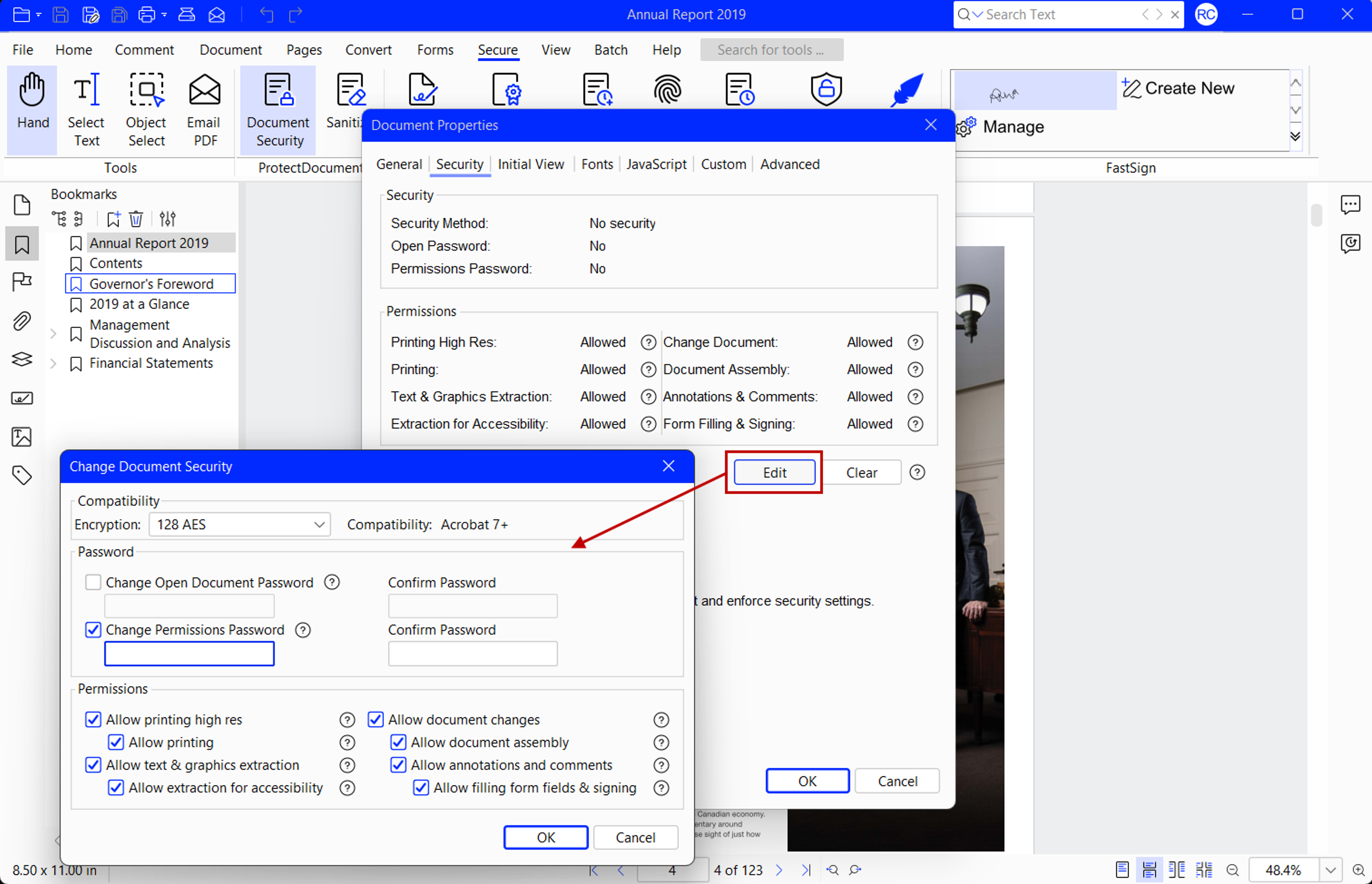
- Select Secure > Document Security.
- You’ll see options for securing PDF documents.
- Click on Edit.


3. Choose your security features
- Select your document security options.
- Choose your encryption algorithm (128‑bit AES or 256‑bit AES).
4. Add an open password (optional but recommended)
- Check Change Open Document Password.
- Enter the password at add password protection.
- Confirm the password.
5. Set permissions and restrictions
- Check the Permissions Password check box.
- Select options to restrict editing, printing, filling forms and more.

6. Save the secured PDF
Click on OK.
Xodo PDF Studio applies protections immediately.
Save the file using File > Save As if you want to keep both secured and unsecured versions.
Protecting your PDF documents ensures you can share a PDF online safely and only authorized users will be able to access and view it.
How to secure multiple PDFs at once
If you work with multiple PDFs, Xodo PDF Studio also lets you batch process and lock PDFs:
- Go to Batch > Set Security.
- Choose your security settings.
- Apply password, PDF permissions, restrictions, and encryption
- Upload your PDF files or PDF folders.
- Specify your output details.
- Click on Start.


Batch security in Xodo PDF Studio can keep all your sensitive data local while streamlining the process.
How to share a secured PDF safely
1. Share directly via Xodo PDF Studio
If you prefer sharing directly from within Xodo PDF Studio, follow these steps:
- In Xodo PDF Studio, secure your file as needed.
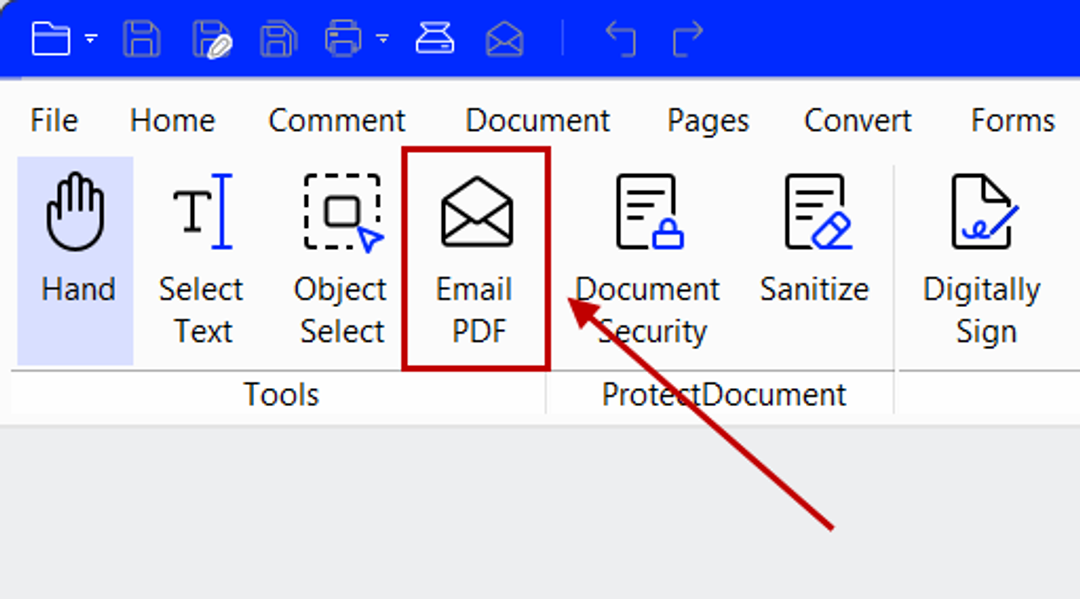
- Click on Email PDF (your email must be specified within Xodo PDF Studio).
- A new email draft will be created with the PDF attached.
- Add a message and click on Send.

Refer to our help guide on setting up your email preferences with Xodo PDF Studio to set this feature up.
2. Share your protected PDF manually
If you want to share your PDF manually, follow these steps:
- Save the secured PDF to your desktop.
- Share via your preferred method.
- Send it via email, corporate messaging tool, or encrypted USB.
Pro Tips:
- Never include the PDF password in the same message.
- Send your password through a different channel.
- Share it verbally during a call.
- Use a pre‑agreed password format.
Xodo PDF Studio security options explained
Below is a closer look at the different options to protect PDF files effectively.
I) Password protection
Open Document Password: Adds a password required to open the file. Use this when sending PDFs that are confidential (medical results, salary documents, client legal files).
Permissions Password: Allows the recipient to open the PDF but restrict the user from actions such as, editing, copying text, extracting pages, or printing.
Using PDF password protection with specific permissions is an ideal way to share a document and control access at the same time.
II) Encryption levels
PDF encryption protects file content with a mathematical algorithm. Xodo PDF Studio supports:
- 128‑bit AES encryption for general business files.
- 256‑bit AES encryption for sensitive or regulated documents.
Use either to create an encrypted file for sharing banking statements or employee information to limit risk and meet common security expectations.
III) PDF document permissions
Xodo PDF Studio lets you apply granular restrictions. You can restrict actions such as:
- High res printing.
- Text and graphics extraction.
- Changing the document.
- Altering PDF pages.
- Adding annotations and comments.
- Signing and filling out interactive forms.
Pro Tip: Combine these usage rights selectively when you set a password for a customized layer of protection.
Frequently asked questions
1. What is the best way to secure a PDF?
Use a desktop application like Xodo PDF Studio to add passwords, restrictions, and strong encryption. Desktop apps keep sensitive files offline and avoid cloud‑based risks.
2. Can I secure a PDF for free?
Xodo PDF Studio offers a perpetual license with full security tools and works offline on Windows, macOS, and Linux. Free online tools may upload your file to the cloud, which is risky for sensitive documents.
3. What’s the difference between 128‑bit and 256‑bit encryption?
256‑bit encryption provides stronger protection and is preferred for medical, legal, and financial documents. 128‑bit is suitable for more general use.
4. Can someone remove my PDF password?
If the password is strong and encryption is applied properly, it cannot be removed without the password. Weak passwords are easier to guess or crack.
5. How do I prevent someone from copying content from my PDF?
Use permissions restrictions in Xodo PDF Studio to disable copying, editing, and page extraction.
6. How can I secure multiple PDFs at once?
Use batch security in Xodo PDF Studio to apply the same settings to many files at the same time.
7. Is desktop PDF security safer than online tools?
Yes, in most cases. Desktop PDF editors usually process files offline, avoiding the risk of uploading sensitive documents to external, third‑party servers.
8. Can I share a secured PDF through email?
Yes. You can email it directly from Xodo PDF Studio or attach it manually to your preferred email client. Remember to always send the password separately for added security.
9. Can I secure a PDF on my phone before sharing it?
Yes. You can secure a PDF on your phone using the Xodo Mobile apps. You can password protect your PDFs on iOS or Android, save it to your device, and share it with the apps on your phone.
Final thoughts
Securing a PDF before you share it can be simple. Xodo PDF Studio provides you with all the advanced security features to create a password protected PDF offline, on any OS, and with file permissions you set.
Try Xodo PDF Studio for secure, offline PDF protection and editing.


Related Articles

What is a PDF File: Everything You Need to Know
Learn what a PDF file is, why it keeps your layout consistent across devices, and how the format works for modern workflows. Get a look at why many are using it to share, print, and store documents as well how to work with the PDF using Xodo PDF Studio.
The Future of PDFs and Digital Documents in the Workplace
Digital document workflows are changing. What does this mean? Get a look at the trends behind that shift, the role of intelligent documents, best practices to safeguard your document workflows and how Xodo PDF Studio can help.

How to Unlock Bank Statement PDFs on Desktop
Need to unlock your bank statement PDF? Learn how to remove PDF passwords on any desktop securely with Xodo PDF Studio. We cover secure methods, common errors to avoid, and smart ways to manage password-protected financial files.




