 PDF to Word
 PDF to Excel
 PDF to HTML
 PDF to Text
 PDF to PDF/A
 PDF to PowerPoint
 PDF to JPG
 HEIC to JPG
 PDF to PNG
 OCR Converter
 Word to PDF
 JPG to PDF
 Excel to PDF
 PDF Converter
 PNG to PDF
 PowerPoint to PDF
 DICOM to PDF
 Merge PDF
 Split PDF
 Delete Pages
 Rotate PDF
 Rearrange PDF
 PDF Editor
 Crop PDF
 DOCX Editor
 Edit PDF Text
 Compress PDF
 Sign PDF
 Redact PDF
 Fill in PDF Forms
 Flatten PDF
 Annotate PDF
 ASK PDF
 PDF Compare
 PDF Viewer
 Office Viewer
 Text Compare
 Validate PDF/A
How to Fill Out PDF Forms Online Without Printing or Scanning
Mar 4 2026
PDF Editing


5 min
Share this post


Learn how to fill out PDF forms online using Xodo's PDF editor tool or your browser app. Upload your file, complete fields, sign, save, and share PDF forms from any device, with no printing or scanning required.
Filling a PDF form by hand takes time and usually involves a printer and scanner. Online PDF tools replace that process with a faster workflow on any device.
With Xodo Web, you can upload the form, fill in each field, add your signature, and download the completed PDF in minutes. Basic browser tools also work for simple forms.
This guide explains how to fill out a PDF form using Xodo Web or your browser, and what to do if your PDF does not allow typing.
What is a fillable PDF form?
A fillable PDF form is a document with interactive fields you can select or type into. These fields let you enter text, pick dates, check boxes, or sign digitally.
Why some PDF forms cannot be filled
If you click inside a form field and nothing happens, the PDF may be:
- scanned or flattened
- created as a static document without fields
- missing form annotations
- password‑protected
- locked by the creator
You can still fill these files by adding your own text boxes or creating new form fields using an online editor like Xodo Web.
How to fill out PDF forms online with Xodo Web's PDF editor
Follow these steps to fill out PDF forms online with Xodo Web's PDF editor.
1. Open the online PDF editor
- Go to Xodo Web’s online PDF editor tool.
2. Upload your PDF form
- Upload a PDF form from your computer or drag it into the upload area.
- You can also open documents from Dropbox, Google Drive, or Xodo Drive.


Once uploaded, the form opens in your browser.
Tip: If your PDF needs a quick correction, you can edit text or annotations before filling the fields.
3. Fill out the form
- Choose any text field, checkbox, or dropdown and enter your information.
- To add your signature, choose the signature tool and draw, type, or upload an image.

If your PDF is not fillable, use the Build Form tools to create a fillable form with text fields, checkboxes, signature blocks, or dropdown menus.
4. Download or share the completed form
- Download the updated PDF form or save it to Xodo Drive or Google Drive.
- You can also share a link to the document if you need someone else to review it.
Why use Xodo Web for form filling
Xodo Web opens your PDF in the browser and detects fillable fields automatically. You can fill, edit, and share completed forms. No installation, printing, or scanning is required, and files stay local to your browser session.
- Advanced tools
You can fill forms, add signatures, adjust fields, edit text, annotate, and make small updates without switching apps. - Local file processing
Your documents stay private. Everything is processed in your browser to ensure privacy. No information or files are sent to external servers. - No installation required
You only need your browser. Upload the file, fill the fields, and download the completed PDF form.
How to fill out a PDF form using your browser
Modern browsers like Chrome, Edge, and Firefox support simple form filling. This method works best when the PDF already contains fillable fields.
Follow these steps:
- Open the PDF form in your browser.
- Click inside any interactive field and type your information.
- Use the drawing or annotation tool to add a signature.
- Save or download the completed form.

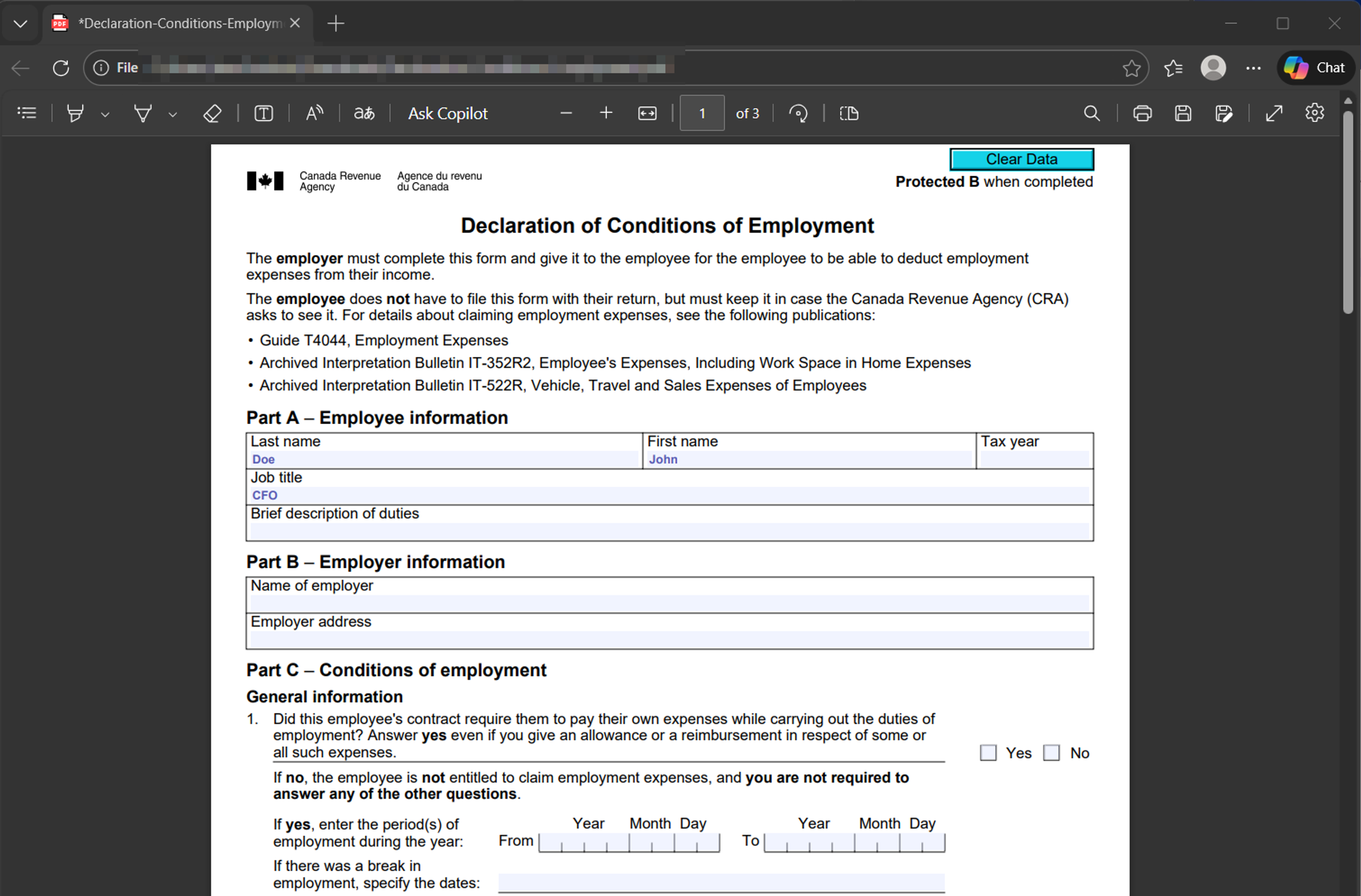
Browser tools work well for basic forms. For forms that require signatures, edits, or added fields, an editor like Xodo Web provides more control.
Practical tips for filling forms online
- Check if the PDF already contains fillable fields before adding new ones.
- Make a copy of the file in case you want to revert changes.
- Use the Tab key to move through fields quickly.
- If fields are missing, add them in Xodo Web using the Build Form tools.
- Flatten the PDF before sharing to prevent edits.
- Preview the completed form on both desktop and mobile if different recipients may open it on different devices.
Frequently asked questions
1. How do I fill out a PDF form online without printing it?
Upload the form to a browser‑based editor like Xodo Web, type into the fields, add a signature if needed, and download the updated file.
2. Can I fill a PDF form electronically?
Yes. Xodo Web lets you fill, sign, and save the form directly in your browser. All processing is done locally on your device, without uploads to external servers.
3. Why can’t I type in my PDF form?
The PDF may not contain fillable fields or may be scanned. You can add your own interactive fields using the Build Form tools in Xodo Web's PDF editor.
4. How do I know if a PDF is fillable?
Hover over the fields. If the areas highlight or show a cursor, the PDF is fillable. If nothing activates, upload the file to Xodo Web to view and add fields.
5. Can I edit existing PDF form fields?
Yes. You can add new, update or remove fields using the Build Form options in Xodo Web.
6. How do I fill out a PDF form on my phone?
Install the Xodo mobile app for iOS or Android, open your file, tap each field to enter your information, then save or share the PDF.
7. Is it safe to fill confidential forms online?
Yes. Xodo Web's PDF editor processes files locally in your browser, so your data stays on your device. For details, see our tool privacy page.
8. Can I fill a PDF form without Adobe?
Yes. You can fill forms using your browser or an online PDF editor like Xodo Web.
Fill out any PDF form online in minutes
You can now complete a PDF form without printing or scanning. Upload the file, type your information, sign if needed, and download the updated PDF.
Try Xodo Web's PDF editor with your next form and speed up your workflow on any device.


Related Articles


How to Export and Reuse PDF Form Data
Export and reuse PDF form data using Xodo PDF Studio. We'll show you how to set clear field names, export your data file, import it into a new form when needed, and more. Get full steps and tips from our guide.

How to Batch Flatten Fillable PDF Forms Offline
Completed fillable PDFs can remain interactive when you need final copies. Batch form flattening creates static outputs from multiple files offline. Learn how to prepare, process, and check your PDFs with Xodo PDF Studio.

How to Create Fillable PDF Forms Online
Create a fillable PDF online with ease using Xodo Web. Upload your file, add the fields you need, and save a version that’s ready to share. The online PDF editor runs in your browser, making it easy to build forms without installing any software.




