 PDF to Word
 PDF to Excel
 PDF to HTML
 PDF to Text
 PDF to PDF/A
 PDF to PowerPoint
 PDF to JPG
 HEIC to JPG
 PDF to PNG
 OCR Converter
 Word to PDF
 JPG to PDF
 Excel to PDF
 PDF Converter
 PNG to PDF
 PowerPoint to PDF
 DICOM to PDF
 Merge PDF
 Split PDF
 Delete Pages
 Rotate PDF
 Rearrange PDF
 PDF Editor
 Crop PDF
 DOCX Editor
 Edit PDF Text
 Compress PDF
 Sign PDF
 Redact PDF
 Fill in PDF Forms
 Flatten PDF
 Annotate PDF
 ASK PDF
 PDF Compare
 PDF Viewer
 Office Viewer
 Text Compare
 Validate PDF/A
How to Edit a PDF without Adobe Acrobat
Jan 30 2026
PDF Editing


5 min
Share this post


Discover how to edit PDF documents without Adobe Acrobat by using Xodo PDF editor on desktop, online, or on mobile. This guide covers each method and gives clear steps based on the device you use.
Editing a document doesn’t need a complex application or a costly subscription. Many people only need straightforward PDF editing tools to change text, leave comments, reorder pages, or complete forms.
Adobe Acrobat covers these tasks, but it also comes with a higher cost and a learning curve that doesn’t suit everyone.
If you want a lighter option, Xodo gives you several ways to edit PDFs on desktop, online, or on your phone. You can make quick edits in your browser, use a full PDF editor on your desktop, or handle documents on mobile without switching between apps.
This guide covers:
- How to edit a PDF on desktop with Xodo PDF Studio
- Why Xodo PDF Studio works well as an Adobe Acrobat alternative
- How to edit a PDF online using Xodo Web
- How to edit a PDF on Android or iOS with Xodo Mobile
- Common questions about editing PDFs without Acrobat
How to edit a PDF on desktop with Xodo PDF Studio
To edit a PDF on Windows, macOS, or Linux without Adobe Acrobat, follow these steps:
1. Download and install Xodo PDF Studio
- Download Xodo PDF Studio for Windows, macOS, or Linux.
- Install and launch the software.
2. Open your PDF document
To open your file in Xodo PDF Studio, do any of the following:
- Go to the File tab to open your PDF from different sources.
- Go to Home > Open.
- Drag and drop your PDF directly into the interface.
3. Edit your document
Modify your PDF with any of the available tools. You can:
- Update existing and add new text
- Add annotations (draw, comment, add sticky notes, stamps, strikethroughs, etc.)
- Insert, delete, crop and re-organize pages
- Highlight text or redact sensitive data
- Add images, shapes and perform OCR
- Fill out PDF forms and add e-signatures


4. Save your updated PDF
- Go to Home > Save
- Pick a location and file name
- Click Save
Xodo PDF Studio offers a complete set of practical and secure tools to manage, edit, and convert PDFs on all major operating systems.
For similar guides, see how to edit a PDF without Foxit PDF Editor or Nitro PDF. You can get a broader feature and licensing comparison with our guide to the best Nitro PDF alternative in 2026.
Why Xodo PDF Studio works well as an Adobe Acrobat alternative
Feedback from G2 reviewers highlights several areas where Xodo PDF Studio stands out:
- Lower overall cost
PDF Studio offers the editing features most people need at a noticeably lower price than Adobe Acrobat. - Flexible plans
Individuals and teams can choose a subscription plan that fits their needs, instead of paying for features they won’t use. - Perpetual license option
Teams that want a one‑time purchase instead of a monthly subscription consider this a strong advantage. - Cross‑platform support including Linux
Xodo PDF Studio runs on Windows, macOS and Linux. Many development teams value the ability to edit PDFs on Linux. - All‑in‑one PDF editor
More than 60 tools are available, including OCR, redaction, page management, conversion, and document comparison. - Part of the Xodo Document Suite
In Xodo Document Suite, Xodo PDF Studio connects with Xodo Web and Xodo Mobile, so users can move between desktop, browser, and phone without breaks in their workflow.
For a closer look at how it stacks up against Acrobat, visit our comparison page.
Pro Tip: Features reviewers often mention:
- Batch processing: Power users see this as a major time saver when handling large sets of documents.
- OCR: Users working with scanned documents, contracts, and archives rate this highly, as it turns static scans into searchable, editable text.
- Document comparison: Helpful for legal teams, compliance reviewers, and engineering groups that track changes between versions.
How to edit a PDF online with Xodo Web
Here's how you can edit PDF files online without Adobe using Xodo Web:
- Open the Xodo Web's online PDF Editor.
- Upload your PDF.
- Use the editing tools to annotate, sign, insert links, update text, crop pages, and redact data.
- Download your updated file.


Xodo Web gives you secure and intuitive tools to edit PDFs online. The free online PDF editor runs in your browser, but processing happens on your device. Your files are not uploaded to external servers.
You can edit one PDF per day for free. Starting a free trial lets you work on more documents and unlocks all advanced features.
How to edit a PDF on phone or tablet with Xodo Mobile
If you prefer editing on your phone or tablet, Xodo Mobile works on both Android and iOS. Use these steps:
- Install Xodo on Android or iOS.
- Open the app.
- Tap Toolbox > View and Edit PDF.
- Select your file.
- Choose an editing tool from the menu and make your updates.
- Tap Back when you’re done (changes save automatically).


Xodo Mobile supports adding text, markups, form filling, and scanning pages with your phone's camera. It’s an easy way to handle files when you’re away from your computer.
Frequently asked questions
Can I edit a PDF without Adobe Acrobat?
Yes. Xodo tools on desktop, online, and mobile let you edit PDF text, annotate pages, complete forms, and redact content without Adobe Acrobat.
How do I make a PDF editable without Adobe?
Use a PDF editor that supports direct editing, such as:
- Xodo PDF Studio for full desktop editing
- Xodo Web for quick online edits
- Xodo Mobile for updates on Android and iOS
Is it possible to edit a PDF for free?
Yes. Xodo Web offers a free PDF editor. You can highlight text, add sticky notes, insert comments, and combine multiple PDF files online at no cost.
Is there a Google version of Adobe Acrobat?
Google Drive and Google Docs let you open and comment on PDFs, but they don’t support editing like Adobe Acrobat. See our guide for different ways to edit PDF files in Google Drive.
Can I combine PDF files without using Adobe?
Yes. All Xodo tools include features to merge multiple files or combine selected PDF pages into one document.
Can I split a PDF into separate pages online?
Yes. Xodo Web lets you split files into new documents. The same tools are available in the desktop and mobile apps.
Can I add notes or highlights to a PDF without Acrobat?
Yes. Xodo tools on all platforms include markups like comments, notes, highlights, and shapes.
Is it possible to sign a PDF without Adobe Acrobat?
Yes. All Xodo tools include tools to sign documents. PDF Studio and the Xodo Mobile also connect to Xodo Sign for legally binding signatures with detailed audit trails.
The right way to edit a PDF without Acrobat
Xodo lets you edit, annotate, and manage PDFs on desktop, web, or mobile. Pick the platform that suits how you work and update your documents without expensive Adobe subscriptions.
If you need a capable PDF editor for personal use or your team, try Xodo PDF Studio or explore everything in the Xodo Document Suite bundle.


Reena Cruz
PDF Productivity Expert
Share this post
Related Articles

How to Edit a PDF without Nitro PDF
Edit PDF files without Nitro PDF using Xodo. Make changes on desktop, in your browser, or on mobile with tools that stay simple and affordable. Update text, reorder pages, add notes, and work across all your devices with one consistent workflow.
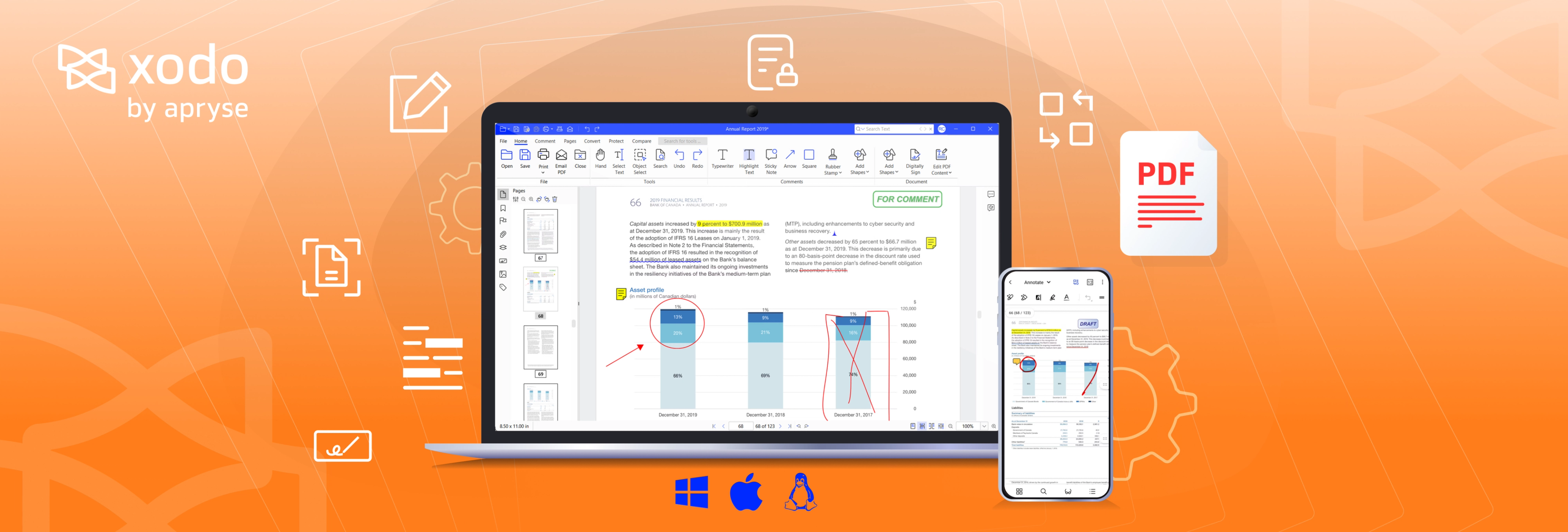
How to Edit a PDF without Foxit PDF Editor
Learn how to edit a PDF without Foxit. This guide shows three ways to update PDF files with Xodo on desktop, online, and mobile so you can add text, mark up pages, reorganize documents, and work without heavy apps or long-term costs.

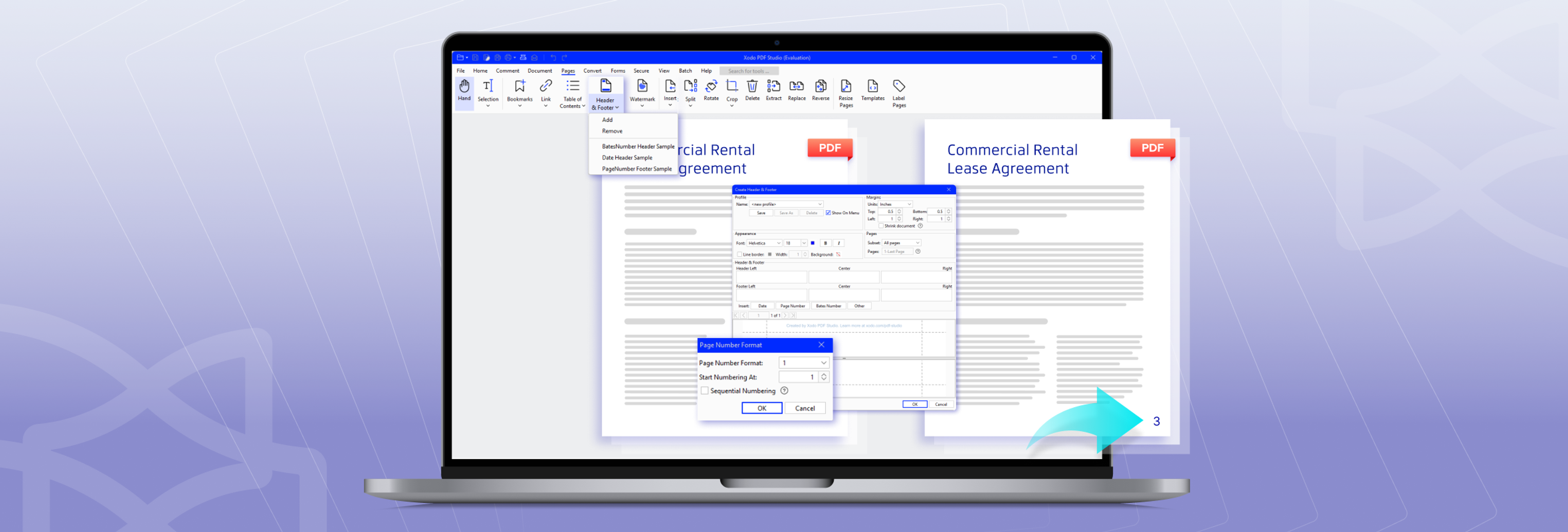
How to Add Page Numbers to PDF
Quickly add page numbers, headers, footers, page labels, and Bates numbering using Xodo PDF Studio. Start organizing your PDFs with the help of our detailed guide!




