 PDF to Word
 PDF to Excel
 PDF to HTML
 PDF to Text
 PDF to PDF/A
 PDF to PowerPoint
 PDF to JPG
 HEIC to JPG
 PDF to PNG
 OCR Converter
 Word to PDF
 JPG to PDF
 Excel to PDF
 PDF Converter
 PNG to PDF
 PowerPoint to PDF
 DICOM to PDF
 Merge PDF
 Split PDF
 Delete Pages
 Rotate PDF
 Rearrange PDF
 PDF Editor
 Crop PDF
 DOCX Editor
 Edit PDF Text
 Compress PDF
 Sign PDF
 Redact PDF
 Fill in PDF Forms
 Flatten PDF
 Annotate PDF
 ASK PDF
 PDF Compare
 PDF Viewer
 Office Viewer
 Text Compare
 Validate PDF/A
How to Edit a PDF without Nitro PDF
Jan 30 2026
PDF Editing


5 min
Share this post


This guide shows you how to edit a PDF without using Nitro PDF. You’ll learn three practical methods for editing your documents on desktop, online, or on mobile with Xodo tools.
Nitro PDF is available for Windows and macOS and has an iOS app, but there is no Android version and no Linux option. This can be a challenge for teams working across different operating systems or users who need a simple editor on any device. Nitro also focuses on enterprise plans, which may feel heavy if you only need everyday edits.
Xodo tools gives you more a flexible setup. You can edit PDF text, add notes, manipulate pages, or fill forms on desktop, in your browser, or on your phone.
Xodo PDF Studio runs on Windows, macOS, and Linux, and Xodo Mobile is available for both Android and iOS. This makes it easier to keep the same workflow across devices.
This guide covers:
- Editing a PDF using Xodo PDF Studio (desktop)
- Reasons to choose Xodo PDF Studio over Nitro PDF
- Editing a PDF using Xodo Web (online)
- Editing a PDF using Xodo Mobile (Android and iOS)
- Answers to common questions
How to edit a PDF offline with Xodo PDF Studio
Xodo PDF Studio is a desktop PDF editor available on Windows, macOS, and Linux. You can install it and start editing without creating an account. Here's how:
1. Install Xodo PDF Studio on your computer
- Download Xodo PDF Studio.
- Install it on your Windows, Mac, or Linux device.
- Launch the software.
2. Open the PDF you want to edit
You can load your document in a few ways:
- Use the File tab to browse local files or cloud folders.
- Go Home > Open.
- Drag and drop a PDF into the workspace.
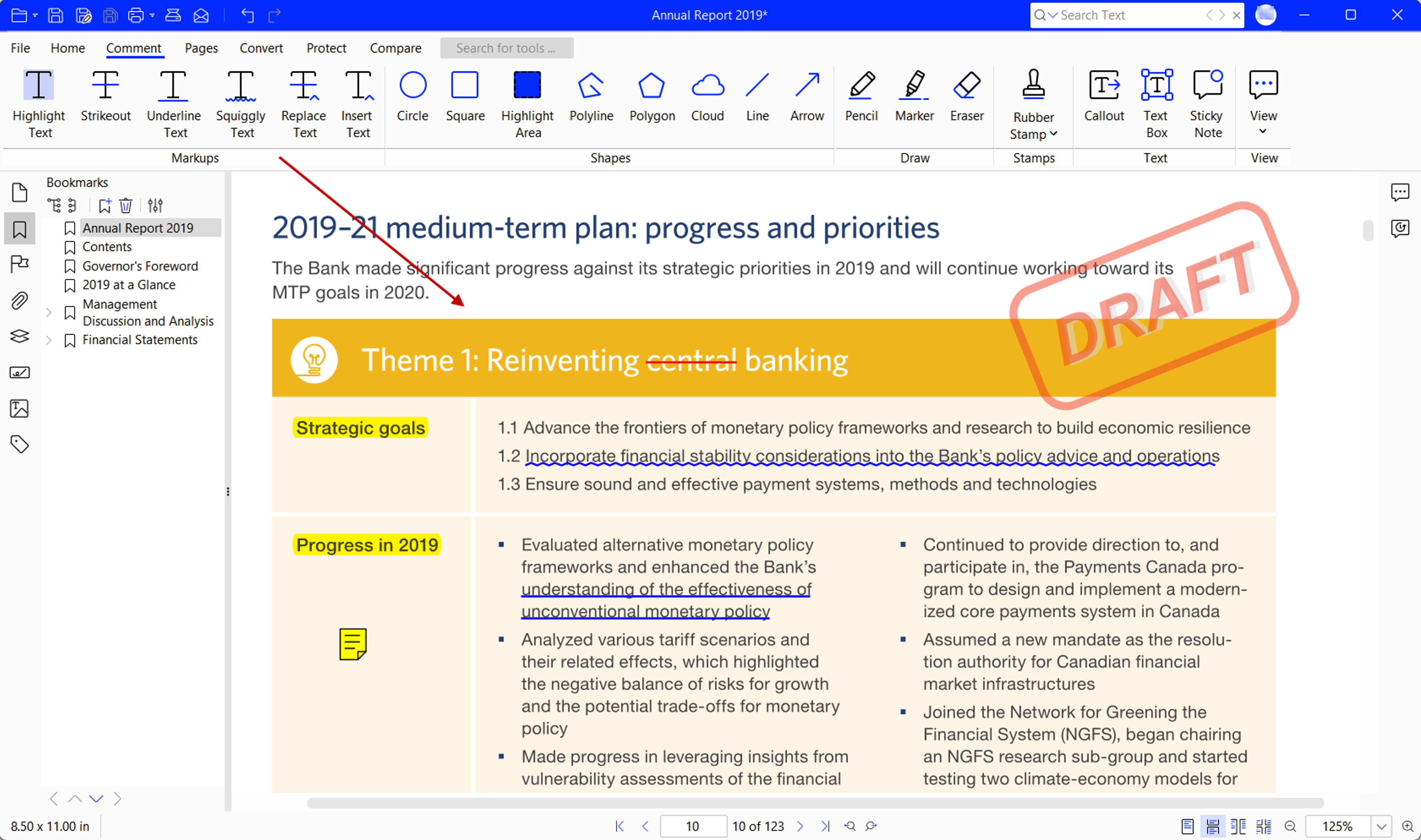
3. Edit your PDF
Use the editing tools and advanced features in the Home, Comment, Document and Pages tabs.
- Add, delete, or permanently redact PDF text.
- Insert comments, highlights, sticky notes, underlines, and strikeouts.
- Merge, split, rearrange, rotate, and crop PDF pages.
- Insert shapes, images, and stamps.
- Sign and fill out interactive forms.
- Batch process a large number of documents.
- Sanitize and apply document security options.

4. Save changes to your PDF
- Click on Save.
- Choose a folder.
- Export your updated PDF.
Xodo PDF Studio gives you a complete PDF editor to view, convert, edit, and manage documents without relying on Nitro PDF. For a deeper look at desktop features, platform support, and licensing, read our full Nitro PDF alternative comparison.
For similar guides, check out:
Why choose Xodo PDF Studio over Nitro PDF
Here are some reasons why users are choosing Xodo PDF Studio as a Nitro PDF alternative:
- Flexible pricing
Xodo PDF Studio offers lower-priced plans starting at $9.99/mo and a one‑time license option. - Perpetual license option
You can buy PDF Studio once and keep using it instead of paying for recurring enterprise tiers. - Full set of tools
You get more than 60 editing tools without the added enterprise overhead. - Xodo Suite access
If you go for Xodo Document Suite plan, you can works across desktop, web, and mobile. - Cross platform support
You can install Xodo PDF Studio on Windows, macOS, and Linux. This helps teams who work in mixed operating system environments or rely on Linux for development. - Offline editing capabilities
You can edit documents locally without sending files to external servers. This supports secure or confidential work.
You can read what independent reviewers and users on G2 have to say about their experience with Xodo PDF Studio on G2.
How to edit a PDF online with Xodo Web PDF editor
Xodo Web is a secure, browser-based PDF editor that helps you make quick document edits without installing any software. Here's how:
- Open the online PDF editor tool.
- Upload your PDF file. You can upload from your local device or Xodo Drive, Google Drive, Dropbox.
- Use the available tools to add and edit text, review and markup content, redact sensitive information, fill and sign PDF form, and more.
- Once done, download your edited PDF.


Note: Xodo Web is free for one PDF per day. If you need to edit more PDF files, you can start a free trial. You can cancel your trial anytime.
How to edit a PDF on Android or iOS with Xodo Mobile
Nitro offers a mobile app for iOS but not for Android. Xodo covers both mobile platforms and keeps your editing tools consistent. Follow these steps:
- Install the app on your Android or iOS device.
- Open the app.
- Tap the Toolbox icon and select View and Edit PDF .
- Open the PDF you want to edit.
- Choose a tool from the menu and make your changes.
- Tap the Back button to save your edits.


Xodo Mobile supports adding text, markups, redaction, form filling, and scanning pages with your phone or tablet's camera. It gives you a simple way to work on PDFs and keep projects moving while on the go.
Frequently asked questions
What is the easiest way to edit a PDF without Nitro PDF?
Depending on your device or platform, you can use Xodo PDF Studio on desktop, Xodo Web for online editing, or Xodo Mobile for quick updates on Android and iOS.
Can I edit a PDF on any device without Nitro PDF?
Yes. Xodo works on Windows, macOS, Linux, iOS, Android, and any modern browser. You can edit PDF files on any device you have available.
How can I make quick edits to a PDF without installing software?
The quickest way is to use Xodo Web's free online PDF editor. Simply navigate to the page, upload your PDF, make edits, and download your file. All processing is done locally without uploads to servers.
What’s the best free option to edit a PDF without Nitro PDF?
Xodo Web's free version allows you to edit one file each day. For full access, you can start a free trial in Xodo PDF Studio or Xodo Mobile.
How do I edit a PDF offline without Nitro PDF?
Install Xodo PDF Studio. Open the PDF, choose an editing tool, make changes, and save the file. It works on Windows, macOS, and Linux.
Can I edit scanned PDFs with Xodo tools?
Yes. All Xodo tools offer built-in OCR technology to turn scanned documents into editable files.
Can I collaborate on a PDF with others?
Yes. In Xodo Web, you can share a file for comments. In Xodo PDF Studio, you can send files by email or use cloud storage.
How do I unlock a PDF for editing?
If the file has a password, enter it in a PDF editor and remove the restrictions. Without the password, the file cannot be edited.
Can I edit a PDF without installing any software?
Yes. Xodo Web's online PDF editor lets you edit text, extract pages, fill forms, redact content, and download the updated file in your browser. No need to install any software.
A simpler path to reliable PDF editing
You do not need Nitro PDF to edit your files. Xodo gives you a simple and affordable set of tools for desktop, web, and mobile.
You can edit, compare, organize, and convert files across Windows, macOS, and Linux. You can also work on Android or iOS without switching apps.
Start editing your documents with PDF tools that work across every device.


Reena Cruz
PDF Productivity Expert
Share this post
Related Articles

How to Edit a PDF without Adobe Acrobat
Edit PDFs without Adobe Acrobat using simple tools on desktop, online or on mobile. This guide shows how to update text, add notes and work with pages using Xodo PDF Studio, Xodo Web and Xodo Mobile.
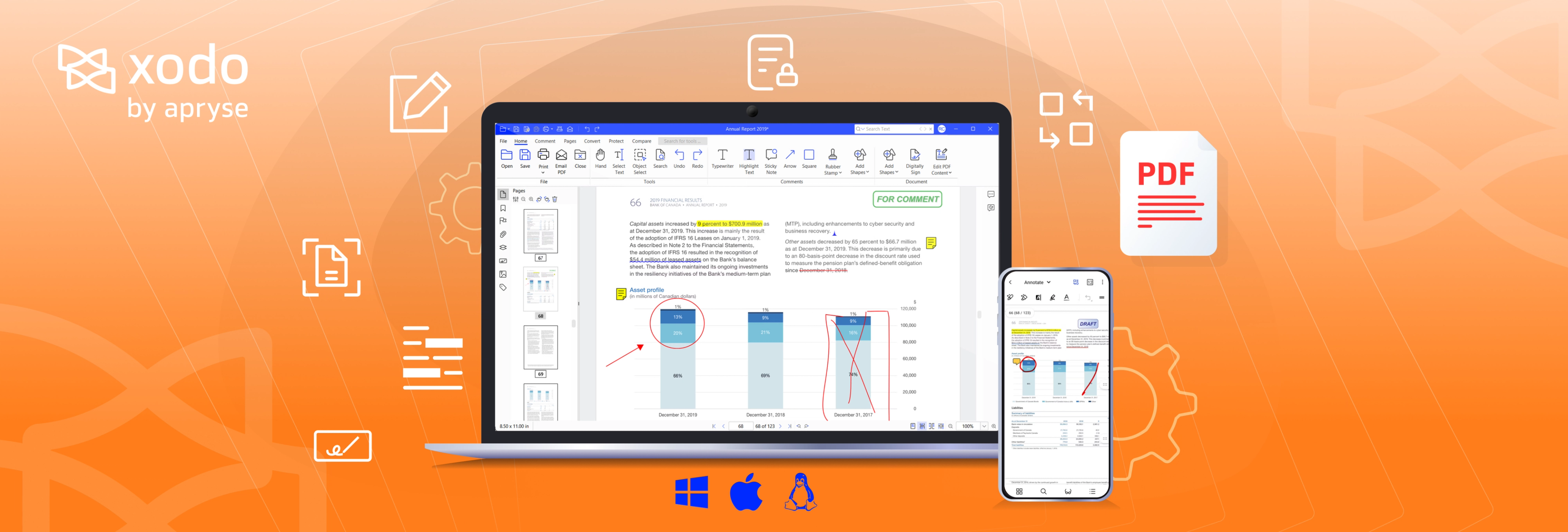
How to Edit a PDF without Foxit PDF Editor
Learn how to edit a PDF without Foxit. This guide shows three ways to update PDF files with Xodo on desktop, online, and mobile so you can add text, mark up pages, reorganize documents, and work without heavy apps or long-term costs.

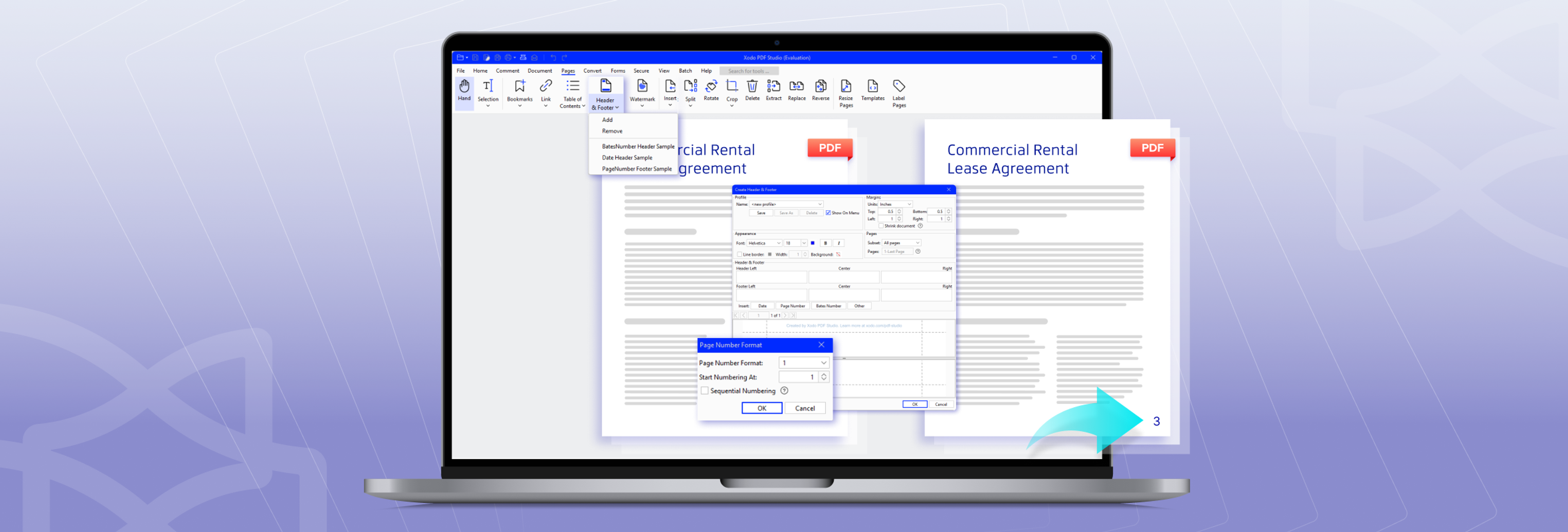
How to Add Page Numbers to PDF
Quickly add page numbers, headers, footers, page labels, and Bates numbering using Xodo PDF Studio. Start organizing your PDFs with the help of our detailed guide!




