 PDF to Word
 PDF to Excel
 PDF to HTML
 PDF to Text
 PDF to PDF/A
 PDF to PowerPoint
 PDF to JPG
 HEIC to JPG
 PDF to PNG
 OCR Converter
 Word to PDF
 JPG to PDF
 Excel to PDF
 PDF Converter
 PNG to PDF
 PowerPoint to PDF
 DICOM to PDF
 Merge PDF
 Split PDF
 Delete Pages
 Rotate PDF
 Rearrange PDF
 PDF Editor
 Crop PDF
 DOCX Editor
 Edit PDF Text
 Compress PDF
 Sign PDF
 Redact PDF
 Fill in PDF Forms
 Flatten PDF
 Annotate PDF
 ASK PDF
 PDF Compare
 PDF Viewer
 Office Viewer
 Text Compare
 Validate PDF/A
How to Edit a PDF without Foxit PDF Editor
Jan 30 2026
PDF Editing


4 min
Share this post


This guide shows how to edit a PDF without using Foxit PDF Editor. You’ll learn 3 practical ways to update your documents on desktop, online, or on mobile using secure Xodo tools.
Editing a PDF in Foxit PDF Editor works well for some users, but the pricing model or feature mix is not ideal for everyone. If your needs are simple or you want more flexible licensing, consider Xodo PDF Studio.
Xodo PDF Studio offers a perpetual license, and fast PDF editing on Windows, macOS, and Linux platforms. You can also use other Xodo tools to modify documents online, and on mobile without changing your workflow.
This guide shows how to edit PDF files without Foxit by using:
Let’s start with desktop PDF editing.
Edit a PDF with Xodo PDF Studio on desktop
Follow the steps below to edit PDF files without Foxit PDF editor on any desktop:
1. Install Xodo PDF Studio
- Download Xodo PDF Studio on your computer (Windows, macOS, or Linux).
- Install and launch the application.
2. Open your PDF file
You can:
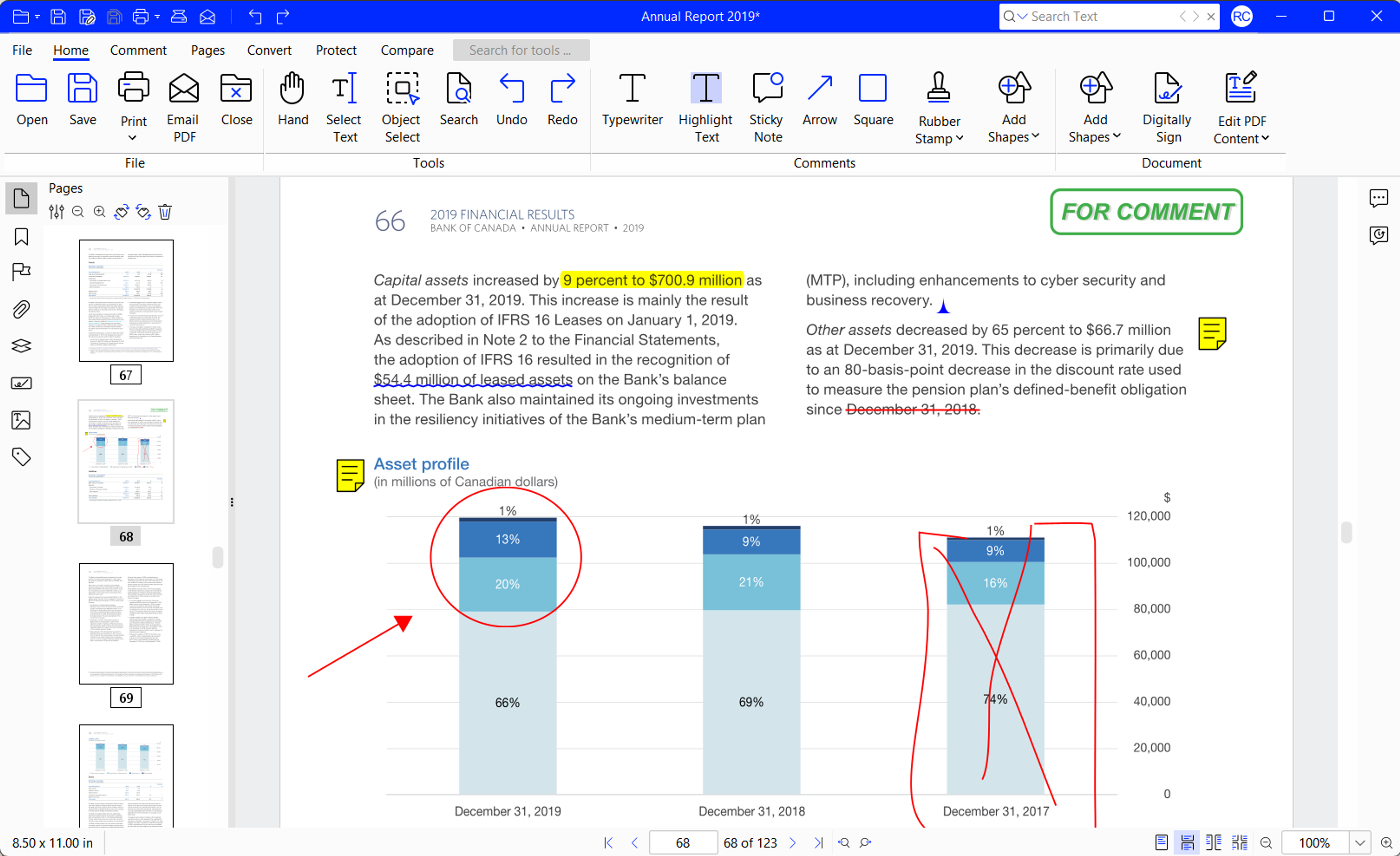
- Go to Home > Open.
- Use the File tab to open files from local folders or cloud storage.
- Drag and drop your PDF into the app window.
3. Edit the PDF as needed
Use the tabs across the top to switch between core PDF tools:
- Home: Add and edit text, insert images, add links, create fillable PDF forms.
- Comment: Highlight, underline, or strike out text, add notes, insert shapes or stamps.
- Pages: Reorder, rotate, crop, or delete PDF pages, split or merge files.
- Convert: Convert PDFs to other file formats and vice versa.
- Secure: Sanitize, digitally sign, and secure files with passwords.

4. Save your edited PDF
- Go to Home > Save.
- Select a file name and folder.
- Save the updated PDF.
Xodo PDF Studio includes more than 60 tools and supports the same core editing tasks as Foxit PDF Editor. You can edit text, organize pages, or annotate documents on any operating system.
For related guides, see:
Why choose Xodo PDF Studio over Foxit PDF Editor
Users often look for alternatives when they want flexibility or simple pricing. These are the common reasons they switch to PDF Studio:
- Straightforward pricing
Xodo PDF Studio offers a perpetual license. This keeps long-term costs predictable for individuals or small teams who don't need another subscription. - Runs well across platforms
Xodo supports Windows, macOS, and Linux. Teams using different systems do not need to maintain separate tools or licenses. - Focused feature set
You get all the tools to edit and manage PDF documents in a clean and simple user interface. - Easy to learn
The layout keeps core conversion and editing tools visible. This helps new users get started without long onboarding. - Flexible workflows with Xodo Sign
If you need to send documents for signature, Xodo PDF Studio connects with Xodo Sign for legally binding e-signatures.
Edit a PDF with Xodo Web in your browser
If you prefer not to install software, Xodo Web provides a free online PDF editor suited for quick changes:
- Open the free online PDF editor.
- Upload your PDF.
- Edit PDF text, add annotations, apply permanent redaction, and more.
- Download your updated file once done.
Xodo Web gives you the core tools needed for online editing. You can organize pages, highlight text, add comments and notes, fill forms, update text, or crop pages.
You can upload and process one file for free each day. If you need to work on more files or use advanced features like batch processing and AI PDF Summarizer, start a free trial.
Edit a PDF with Xodo Mobile on iOS or Android
If you need to edit PDF on your phone or tablet, Xodo Mobile gives you many of the desktop features on iOS and Android. Use these steps:
- Install Xodo Mobile on your iOS or Android device.
- Open the app.
- Tap the Toolbox icon and select View and Edit PDF.
- Open the file you wish to edit.
- Choose a tool and modify your document.
- Tap on the Back button to save.


Xodo Mobile works well for adding new text, drawings, markups, form filling, and scanning pages using your phone’s camera. It helps you continue your work even when you are away from your laptop.
Frequently asked questions
Can I edit a PDF online without downloading software?
Yes. You can use Xodo Web’s online editor to make updates in your browser. Upload your file, edit text, add notes, highlight content, delete and reorder pages, redact sensitive documents, sign and fill forms.
Is there a way to edit a PDF for free?
Yes. Xodo Web’s free version lets you upload, edit, and download one file per day. You can type text, add notes, fill forms, insert images, and rearrange pages.
Can you edit a PDF without a PDF editor?
It depends on the type of edit. Browsers let you add text or simple drawings. If you need advanced edits like page changes, redaction, or text updates, you will need to use one of the Xodo tools.
What is the main difference between Foxit PDF Editor and Xodo PDF Studio?
Foxit PDF Editor focuses on advanced enterprise features and uses a subscription model.
Xodo PDF Studio offers a perpetual license and the core tools most users need. It also runs on Windows, macOS, and Linux, which makes it a strong option for teams working on different platforms.
Is there a free Foxit PDF Editor?
No. Foxit provides a free PDF viewer with limited tools. Editing features require a paid plan. Xodo Web lets you make basic changes to one document per day at no cost.
Do free online PDF editors have limits on how many files you can edit?
Yes. Many online editors limit daily tasks. Xodo Web lets you edit and download one file for free each day, and paid plans remove these limits and add more advanced tools.
How do I convert files while editing a PDF?
Most PDF editors support file conversion. With all Xodo tools, you can convert common formats to and from PDF, then continue editing the document.
Switch to Xodo for fast, low‑cost PDF editing
Editing PDFs without Foxit PDF Editor is simple with access to Xodo tools. You get flexible pricing, full editing features, and support across desktop, web, and mobile.
You can securely create, convert, edit, organize, and share PDFs in a few steps without installing heavy software. Xodo PDF Studio gives you the tools needed for everyday work.
Start editing your PDFs with Xodo tools today!


Reena Cruz
PDF Productivity Expert
Share this post
Related Articles

How to Edit a PDF without Nitro PDF
Edit PDF files without Nitro PDF using Xodo. Make changes on desktop, in your browser, or on mobile with tools that stay simple and affordable. Update text, reorder pages, add notes, and work across all your devices with one consistent workflow.

How to Edit a PDF without Adobe Acrobat
Edit PDFs without Adobe Acrobat using simple tools on desktop, online or on mobile. This guide shows how to update text, add notes and work with pages using Xodo PDF Studio, Xodo Web and Xodo Mobile.

How to Fill Out PDF Forms Online Without Printing or Scanning
Filling out PDF forms doesn't have to be difficult. Xodo Web's PDF editor lets you perform the entire task online without any printing or scanning. Simply upload your PDF, fill out the fields, and share the finished form. Check out our guide for quick and easy steps to complete your forms.




