 PDF to Word
 PDF to Excel
 PDF to HTML
 PDF to Text
 PDF to PDF/A
 PDF to PowerPoint
 PDF to JPG
 HEIC to JPG
 PDF to PNG
 OCR Converter
 Word to PDF
 JPG to PDF
 Excel to PDF
 PDF Converter
 PNG to PDF
 PowerPoint to PDF
 DICOM to PDF
 Merge PDF
 Split PDF
 Delete Pages
 Rotate PDF
 Rearrange PDF
 PDF Editor
 Crop PDF
 DOCX Editor
 Edit PDF Text
 Compress PDF
 Sign PDF
 Redact PDF
 Fill in PDF Forms
 Flatten PDF
 Annotate PDF
 ASK PDF
 PDF Compare
 PDF Viewer
 Office Viewer
 Text Compare
 Validate PDF/A
How to Convert Multiple Files to PDF at Once
Apr 10 2026
PDF Creation


7 min
Share this post


Batch PDF conversion lets you convert multiple files to PDF in one workflow instead of converting them one by one. This guide explains how batch conversion works, how to use Xodo on desktop, online, and on mobile, and how to fix common batch conversion issues.
Converting documents to PDF is a routine task, but it becomes time‑consuming when you have dozens of files requiring the same repetitive task.
Fortunately, you can perform batch conversions to process multiple files at the same time across different platforms.
Batch conversion differs from single‑file conversion in one key way. Instead of converting each file individually, you queue multiple files at once and apply the same output settings across the entire set. This reduces manual steps, lowers the chance of errors, and keeps file naming and order consistent.
In this guide, we'll focus on batch workflows. We'll cover:
- What is batch PDF conversion
- Converting multiple files to PDF on desktop (Xodo PDF Studio)
- Batch converting to PDF online (Xodo Web)
- Creating PDFs from multiple files on the go (Xodo Mobile)
- How to solve common issues and questions on batch conversion
What is batch PDF conversion?
Batch PDF conversion is the process of converting multiple files to PDF in a single process using shared settings. You select a group of several files and documents, apply your conversion rules once, and then generate PDFs for the entire batch in one pass.
This approach is designed to make the conversion process efficient, consistent, and scalable, especially when working with large volumes of documents.
How to batch convert files to PDF on desktop (Xodo PDF Studio)
You can batch convert your files to PDF using Xodo PDF Studio. It provides a complete conversion workflow, with support for mixed file types, large batches, and consistent quality.
To convert your files to PDF, use these steps:
- Install and open Xodo PDF Studio on your Windows, macOS, or Linux computer.
- Click on the Batch tab > PDF.
- Use the Add Files and Add Folder buttons to select and upload your files.
- Adjust your output format options.
- Click on Start.... Xodo will automatically convert and save the multiple PDF files as specified.


The Xodo desktop batch feature automates repetitive conversion tasks involving Office files (DOCX, XLSX, PPTX), SVG, and AutoCAD (DWG). You can batch convert images, such as PNG, JPG, GIF, HEIC, and TIFF formats in the same queue, as well.
Tip: Need to convert and combine multiple files into one PDF? Go to Convert > From Multiple Files. Upload your files and specify your settings. Click on Start and, once done, save your new PDF file.
Best desktop use cases
- Converting large folders of various formats
- Converting password protected documents (passwords must be provided)
- Gaining consistent output in both conversion quality and file naming patterns
Desktop limitations
- Extremely large batches with Xodo PDF Studio may require more system resources
- Unsupported file formats in the queue will simply be skipped rather than converted
How to batch convert files to PDF online (Xodo Web)
Use Xodo Web for online batch conversions. It provides a browser‑based option when installing software isn't allowed or practical.
To batch convert files to PDF online, follow these steps:
- Go to Xodo Web's PDF Converter tool.
- Upload multiple files at once
- Click on Convert.
- Download and save the newly converted PDFs.


With Xodo Web, you can batch convert Word, Excel, PowerPoint, JPG, PNG, HEIC, and DICOM formats to PDF with one single conversion.
Note that batch conversion is Pro feature for Xodo Web. When you upgrade to a paid account, you'll be able to work with multiple files across all Xodo Web tools and access advanced features.
Best online use cases
- Quick conversions on shared or public computers
- Small conversion batches with common formats like Word to PDF
- Occasional batch needs without advanced settings
Web limitations
- File size and batch limits apply
- Fewer controls compared to desktop
- Dependent on internet connection speed
How to batch convert files to PDF on mobile (Xodo Mobile)
Use the Xodo Mobile app to quickly convert multiple files on your device from anywhere.
Follow these steps on either Android or iOS:
- Install Xodo Mobile for iOS or Android onto your device.
- Open the Xodo Mobile app and tap on the Toolbox icon > Convert to PDF.
- Select your files or tap on ADD FILES to browse your device.
- Tap on NEXT.
- Select either Convert Separately or Merge into one file.
- Tap on CONVERT. Your files will be converted automatically.


Xodo Mobile can convert different file types to PDF from your device. You can convert Office documents (Word, Excel, PowerPoint), images (JPG, HEIC (on iOS), PNG), HTML (webpage), and Text files into PDF format.
Similar to Xodo Web, converting multiple files is a Pro feature on the mobile platform. Consider upgrading to the Pro plan if you work on the go frequently. A free trial is available.
Best mobile use cases
- Converting photos or other documents captured on the go to PDF
- Small batches that need quick processing
- Reviewing and sharing PDFs immediately after conversion
Mobile limitations
- Limited batch size
- Fewer format options than desktop
- Not ideal for large or complex workflows
How to solve common issues with batch conversion
Batch workflows can save time while preserving your content and enhancing your security. They can also produce issues, though, if not planned correctly.
Here are some tips using Xodo PDF Studio.
Formatting inconsistencies
If you have multiple PDF documents that have converted with inconsistent page formatting, Xodo PDF Studio can batch process and apply the same changes across all PDFs.
To batch fix page formatting inconsistencies, use these steps:
- Upload your PDFs in Xodo PDF Studio.
- Go to the Batch tab.
- Select your batch processing option from the toolbar.
- Upload your PDFs using the Add Files or Add Folder buttons.
- Apply and choose your settings accordingly.
- Once done, click on Start... to begin the process.


With Xodo PDF Studio, you can crop, resize, rotate, and delete pages, apply header and footers and watermarks, as well.
Large batch performance issues
Converting large batches may cause issues with slow conversions and hang ups. To help with this, try breaking large batches into smaller conversion jobs by splitting your PDFs into folders in smaller groups instead.
Follow these steps:
- Go to the Batch tab > PDF.
- Click on Add Folder.
- Select the folders containing your PDFs.
- Opt not to include subfolders to keep the conversion process simple.
- Specify any settings and output options.
- Click on Start...
This can help reduce any slow conversions while still getting a majority of the conversion job done.
File order problems
This can be an issue if you're merging your converted files into one PDF document and you need the content to appear in a specific order.
To fix file order issues, follow these steps in Xodo PDF Studio:
- Go to Convert > From Mulitple Files.
- Upload your files by clicking Add Files or Add Folder.
- Click on the file you wish to move.
- Use the arrows to move the file up or down and to top or bottom of the queue.
- Repeat as needed and review the file order.
- If needed, select to Add a bookmark for each merged document.
- Once done, click on Start...


Frequently asked questions
1. How do I convert multiple files to PDF at once?
You can batch convert multiple files using Xodo PDF Studio. Select multiple files, apply your conversion settings once, and process them together with one click.
2. Is batch conversion available on all Xodo platforms?
Yes. Batch conversion with Xodo is fully supported on desktop, web, and on mobile platforms. On web and mobile platforms, converting multiple files requires a Pro account.
3. Can I merge files after batch converting them?
Yes. After conversion, you can merge your PDF files. With Xodo PDF Studio, you can even batch convert and merge all your files at the same time.
4. How is batch conversion different from how to merge two PDFs with annotations?
Batch conversion focuses on creating PDFs from source files. Merging combines existing PDF files, including annotations, into one document.
5. Are there limits to how many files I can batch convert?
Limits depend on the platform. Xodo PDF Studio on desktop supports the largest batches, while Xodo Web and Xodo Mobile apps will have stricter limits due to resources.
6. Does batch conversion preserve formatting?
Yes, it does. However, it largely depends on the original file quality. Using consistent source files will improve the accuracy of the output results.
Fast, consistent batch conversion across platforms
Batch conversion simplifies working with large volumes of documents by reducing tedious and repetitive steps and keeping the output consistent.
Xodo PDF Studio offers the most control and scalability for desktop users, while Xodo Web and Mobile provide flexible options for lighter workflows.
Regardless of platform, you get a quick method for converting multiple documents and images.
Get started with batch conversion using Xodo PDF Studio.


Reena Cruz
PDF Productivity Expert
Share this post
Related Articles
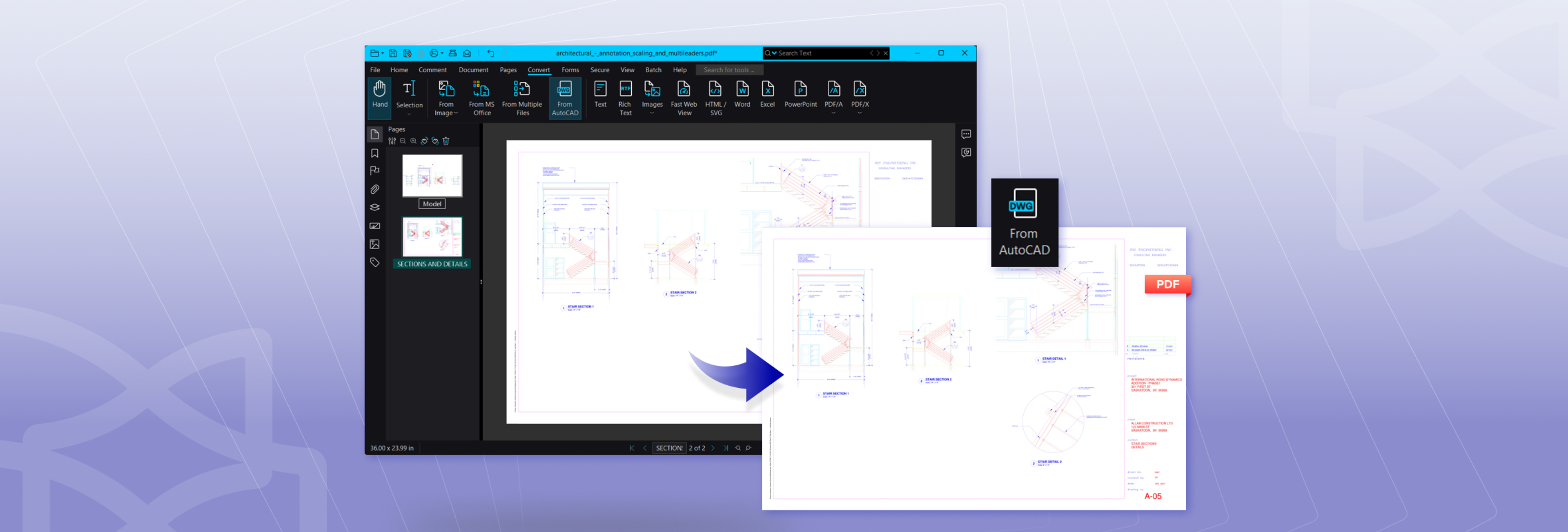
How to Convert DWG to PDF – Save AutoCAD as PDF Files
Learn how to convert AutoCAD files to PDF with our detailed guide. Get steps on how to convert single or multiple DWG files to PDF with AutoCAD and Xodo PDF Studio on Windows, macOS, and Linux. Simplify your workflow and share your CAD designs with ease.
How to Save a Webpage as PDF (on Every Browser)
Learn how to save a webpage as PDF in your browser quickly and with ease. We’ll show you how to capture webpage content into a single PDF. Our guide covers steps for Chrome, MS Edge, Firefox, Opera, macOS, and iPhone and Android devices.

How to Save Email as PDF
Looking for a quick way to save your email content? Discover how to save an email as a PDF document with our tutorial guide. Archive, edit, or repurpose your email content seamlessly. We’ll cover the process with easy-to-follow steps on how to get the job done.




