 PDF to Word
 PDF to Excel
 PDF to HTML
 PDF to Text
 PDF to PDF/A
 PDF to PowerPoint
 PDF to JPG
 HEIC to JPG
 PDF to PNG
 OCR Converter
 Word to PDF
 JPG to PDF
 Excel to PDF
 PDF Converter
 PNG to PDF
 PowerPoint to PDF
 DICOM to PDF
 Merge PDF
 Split PDF
 Delete Pages
 Rotate PDF
 Rearrange PDF
 PDF Editor
 Crop PDF
 DOCX Editor
 Edit PDF Text
 Compress PDF
 Sign PDF
 Redact PDF
 Fill in PDF Forms
 Flatten PDF
 Annotate PDF
 ASK PDF
 PDF Compare
 PDF Viewer
 Office Viewer
 Text Compare
 Validate PDF/A
How to Make a PDF Accessible for Screen Readers
Apr 10 2026
PDF Editing


7 min
Share this post


Focusing on usability rather than compliance, this guide explains how to make PDFs more screen reader friendly using Xodo PDF Studio. Learn how to OCR scanned files, correct reading order, edit text, and run simple manual checks to minimize issues with assistive technologies.
Screen readers don't read PDF content the way users do. They focus on the underlying structure: readable text, content order, and basic organization.
When PDFs look fine on screen but fail when opened with a screen reader, the issue is usually the PDF. Badly scanned documents, incorrect reading order, and improper structure are the most common problems. These are often a result of everyday tasks like manual scanning, exporting from other tools, or merging files from different sources.
However, many accessibility barriers can be reduced without advanced remediation tools or full standards work.
This guide focuses on practical fixes using Xodo PDF Studio, improving real‑world usability. We'll cover:
- What makes a PDF screen reader friendly
- Common accessibility problems in PDFs
- How to fix PDF accessibility issues with Xodo PDF Studio
- When Xodo PDF Studio is enough (and when it isn’t)
- What this guide doesn't cover and commonly asked questions
What makes a PDF screen reader friendly?
A screen reader friendly PDF contains real, selectable text, follows a logical reading order, and includes basic structure such as headings and contextual descriptions. These elements allow assistive technology to read content accurately instead of guessing based on layout.
A PDF that works well with screen readers typically includes:
- Selectable, searchable text
Screen readers can only read actual text. If text cannot be selected with a cursor, it can't be read aloud. - Logical reading order
Content should flow in the order a person would naturally read it, usually top to bottom and left to right. - Headings and basic structure
Headings help users move through long documents quickly instead of listening line by line. - Image context (Alt text)
Images that carry meaning, such as charts or diagrams, need surrounding alt text that explains what they show.
Why scanned PDFs usually fail
Scanned PDFs are often just images of pages. Even though the text looks clear to the eye, screen readers cannot interpret it unless Optical Character Recognition (OCR) has been applied. Without OCR, the document may appear completely blank to assistive technology.
For an overview of how screen readers interact with PDFs in general, our guide on how to read a PDF aloud can provide a quick backgrounder.
Common accessibility problems in PDFs
Below is a look at some of the problems that make PDF files unusable for someone relying on a screen reader.
- Scanned PDFs with no readable text
A scanned contract or report, for example, may look sharp, but screen readers cannot detect any text within the content. Users cannot search, select, or navigate the text. - Incorrect reading order
Text boxes, columns, or sidebars may be read out of sequence. For example, a screen reader might read the footer before the main paragraph or jump between columns line by line. - Missing or unclear headings
Without headings, long documents become difficult to navigate. Screen reader users often rely on headings to move quickly through sections. - Images without descriptions
Charts, icons, or diagrams that carry meaning are silent if they lack any explanation. This can remove key context from the document. - Tables that look fine but read poorly
A table may look organized visually but be read in a confusing order if rows and columns are not structured clearly.
How to fix PDF accessibility issues with Xodo PDF Studio
Most PDF accessibility issues start with the document itself, not the screen reader. The tutorials below focus on practical improvements you can make directly in the file, without full tagging or remediation workflows.
To follow along, install Xodo PDF Studio first, then work through any of the step‑by‑step guides that apply to your document.
Make scanned PDFs readable with OCR
If a PDF started life as a scan, a screen reader cannot read it until you turn the image into real text. OCR is the fastest way to remove that barrier.
To perform OCR on scanned PDFs, use these steps:
- Open your scanned PDF in Xodo PDF Studio.
- Go to Document > OCR.
- Select and specify your OCR settings.
- Click on OK to run the OCR process.
- Review the output.


Once OCR is applied, screen readers can access the text, and users can search and select content. This process also makes PDFs searchable, which is covered in more detail in how to make a PDF searchable.
Edit and correct text
The text within the PDF page content itself may contain errors. In Xodo PDF Studio, you can edit text directly, fix spacing or broken words, remove headers or footers that disrupt reading.
To edit PDF text in Xodo PDF Studio, use these steps:
- Open your PDF document.
- Go to Document > Edit PDF Content > Text.
- Select the text you need to edit.
- Fix your text as needed and select options as needed.
- Click OK and save your PDF.


Correcting text improves clarity for everyone, including screen reader users.
Fix reading order by re‑ordering page content
While Xodo PDF Studio is not a full accessibility tagging tool, but it does allow you to re‑order pages in order to fix the reading order.
To re-order PDF pages, follow these steps:
- Open your PDF document in Xodo PDF Studio.
- Go to the Pages view in the left pane.
- Locate the thumbnail of the page you need to move.
- Drag the page thumbnail to the correct order (marked by a blue line).
- Do this for every page you need to reorder.
- Once done, choose a file name and a location to save your PDF.

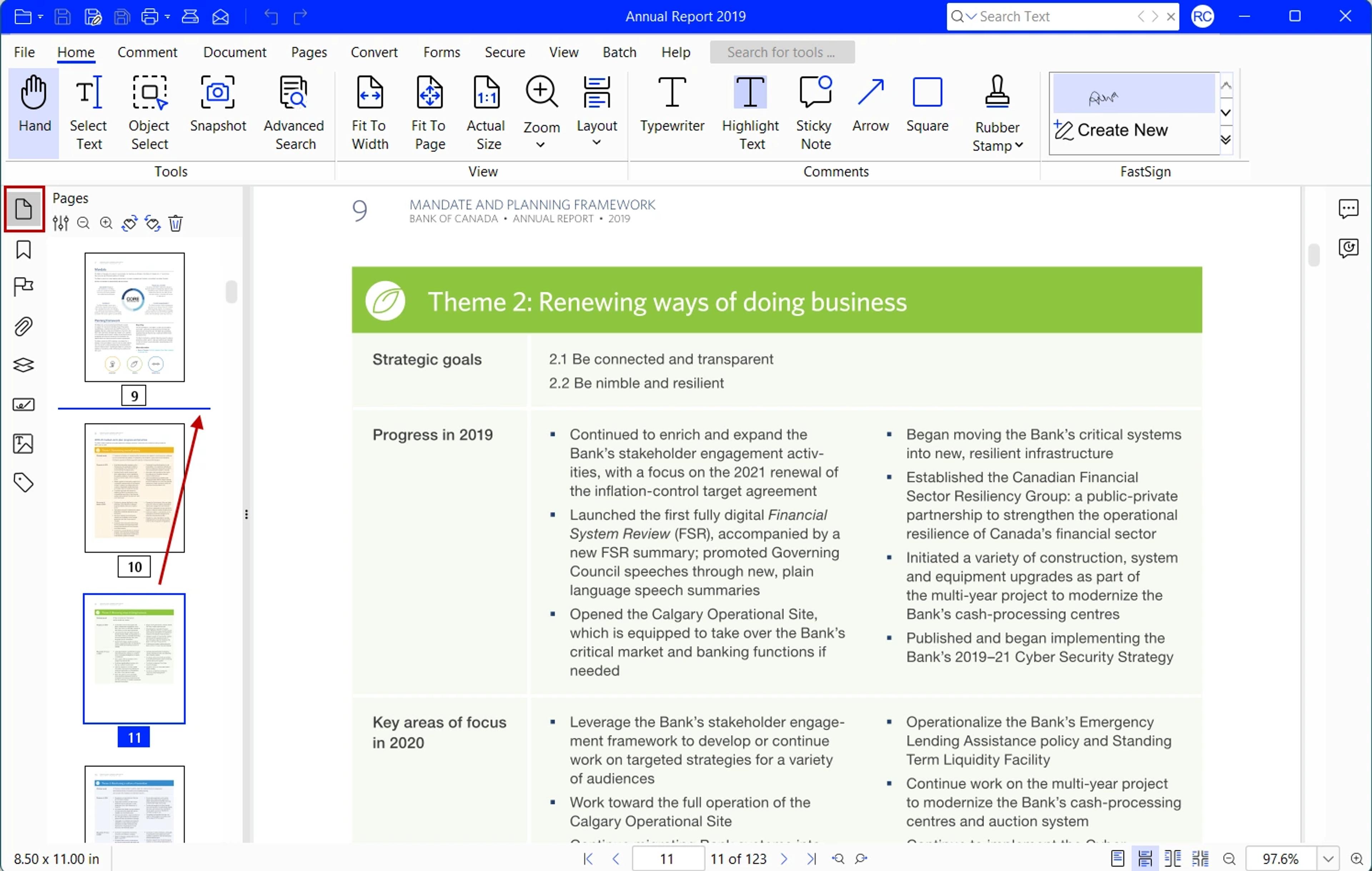
An accurate document structure usually results in a more logical reading flow. If possible, avoid complex visual arrangements. When accessibility matters, simpler layouts help.
Optimize images and charts
Xodo PDF Studio does not provide full alt text tagging workflows, but you can still improve clarity by:
- Adding nearby text explanations for charts
- Including captions that describe what an image shows
- Avoiding images that contain critical text without alt text
This approach helps screen reader users understand context even without formal image tags.
Perform simple manual checks
You do not need specialized tools to perform basic checks or manually fix a PDF. Try these quick tests:
- Can you select and copy text throughout the document?
- Does the content make sense when read aloud using a screen reader or text‑to‑speech?
- Does reading flow logically from top to bottom?
- Do images and other elements have optimized alternative text?
- Is the source document structure reflected accurately in the PDF format version?
The above checks can catch most high‑impact issues.
When Xodo PDF Studio is enough (and when it isn’t)
When practical fixes are sufficient
Xodo PDF Studio works well when you need to:
- Make scanned PDFs readable
- Clean up PDF text in your PDF
- Improve document clarity and order
- Share more usable PDFs with colleagues, students, or the public
For many teams, these small improvements can help reduce many barriers.
When specialized tools may be required
You may need dedicated accessibility or remediation tools if:
- Formal compliance is required
- Complex tagging structures are mandatory
- Documents include advanced interactive elements
Note that this guide focuses on usability, not certification.
What this guide does not cover
To be clear about the scope of this guide.
- This is not legal advice, but suggestions for optimizing your PDFs.
- This does not replace formal accessibility audits.
- Accessibility standards like WCAG are mentioned only conceptually.
- Xodo is not positioned as a compliance or remediation tool
The goal is to provide you with practical tips, not formal validation for creating accessible PDFs.
Frequently Asked Questions
1. What does “screen reader friendly PDF” mean?
It means the PDF contains readable text and logical structure so assistive technology can interpret and read content accurately.
2. Can screen readers read scanned PDFs?
Yes, they can only after OCR is applied. Without OCR, scanned PDFs are just images and unreadable to screen readers.
3. Does Xodo PDF Studio make PDFs fully accessible?
No, not fully. Xodo PDF Studio helps with practical improvements like OCR, text editing, and layout cleanup, but it is not a full accessibility remediation solution.
4. Is OCR always accurate?
It depends. OCR accuracy relies heavily on the quality of the scanned version of the original document and language. Manual review is recommended after conversion.
5. How can I check if my PDF works with a screen reader?
You can check with a few quick tests. Try selecting text, test the PDF with text‑to‑speech tools, or navigate content linearly to see if it reads logically.
6. Are accessible PDFs only for people with disabilities?
No. Searchability, clarity, and clean structure help everyone.
Making PDFs easier to read starts with small fixes
Improving PDF accessibility does not always require complex tools or formal accessibility tools. Many barriers come from documents that were never converted or created properly.
By using Xodo PDF Studio to apply OCR, fix text, improve layouts, and perform basic manual checks, you can make your PDFs easier to read with screen readers and more usable for everyone.
Learn more about Xodo PDF Studio and how it supports everyday PDF tasks.


Related Articles


How to Edit a PDF without Nitro PDF
Edit PDF files without Nitro PDF using Xodo. Make changes on desktop, in your browser, or on mobile with tools that stay simple and affordable. Update text, reorder pages, add notes, and work across all your devices with one consistent workflow.

How to Edit a PDF without Adobe Acrobat
Edit PDFs without Adobe Acrobat using simple tools on desktop, online or on mobile. This guide shows how to update text, add notes and work with pages using Xodo PDF Studio, Xodo Web and Xodo Mobile.

How to Edit a Bank Statement PDF Online
Learn how to edit bank statements using Xodo's online PDF editor. This step-by-step guide shows you how to securely update your PDF financial data locally, right in your browser.




