 PDF to Word
 PDF to Excel
 PDF to HTML
 PDF to Text
 PDF to PDF/A
 PDF to PowerPoint
 PDF to JPG
 HEIC to JPG
 PDF to PNG
 OCR Converter
 Word to PDF
 JPG to PDF
 Excel to PDF
 PDF Converter
 PNG to PDF
 PowerPoint to PDF
 DICOM to PDF
 Merge PDF
 Split PDF
 Delete Pages
 Rotate PDF
 Rearrange PDF
 PDF Editor
 Crop PDF
 DOCX Editor
 Edit PDF Text
 Compress PDF
 Sign PDF
 Redact PDF
 Fill in PDF Forms
 Flatten PDF
 Annotate PDF
 ASK PDF
 PDF Compare
 PDF Viewer
 Office Viewer
 Text Compare
 Validate PDF/A
How to Optimize PDF for Fast Web View
Mar 2 2026
PDF Viewing


6 min
Share this post


Learn how to optimize a PDF for fast web view using Xodo PDF Studio. We'll explain what fast web view is, why it improves loading speed, how to enable it, and how to optimize larger PDFs. The walkthrough is designed for anyone who creates or shares PDFs online.
Fast web view, also known as PDF linearization, rearranges a PDF so a browser can load the first page immediately while the rest of the file loads in the background. This improves online reading speed, especially for large documents, slower networks, or when someone opens a PDF directly from a URL.
If you publish or share PDFs on websites, enabling fast web view helps readers open content sooner and reduces friction on landing pages, email links, and support portals.
Below is a complete walkthrough on how to:
- Optimize your PDF for fast web view with Xodo PDF Studio
- Verify if a PDF is already linearized
- Understand how fast web view works
- Apply additional optimization settings
- Improve file performance using Xodo PDF Studio
How to enable a PDF for Fast Web View
To enable fast web view with Xodo PDF Studio, follow these steps:
1. Install Xodo PDF Studio and open your file
- Download Xodo PDF Studio.
- Install and launch the app.
- Open the PDF you want to optimize.


2. Convert your PDF to fast web view
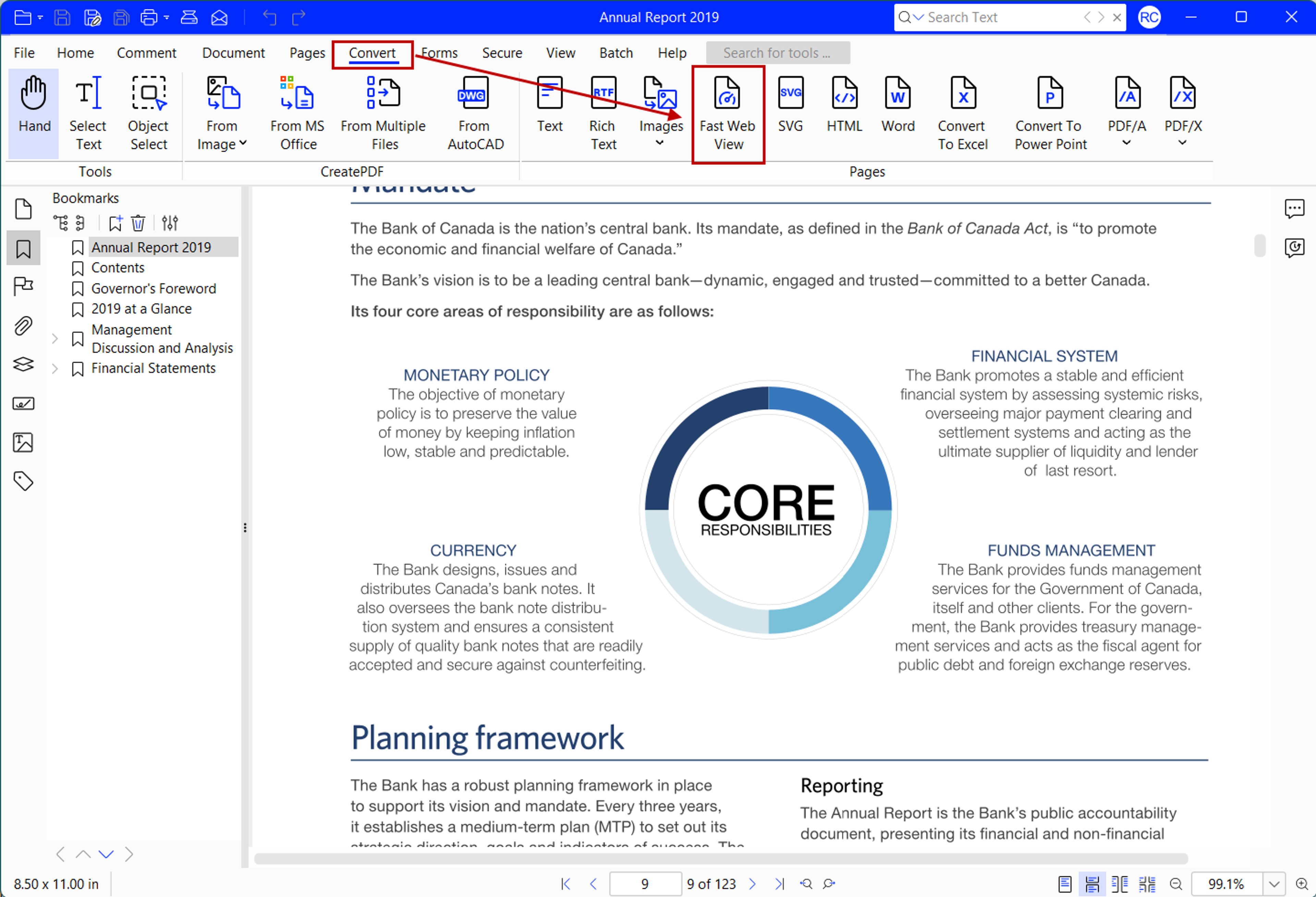
- Go to File > Convert tab > Fast Web View.
- Choose a file name and location to save the document.
This rearranges the PDF file so a browser loads only the requested page first while additional data streams from the web server.

3. Save your PDF
- Click Save to create a new, linearized version of the document.
How to verify if your PDF has fast web view enabled
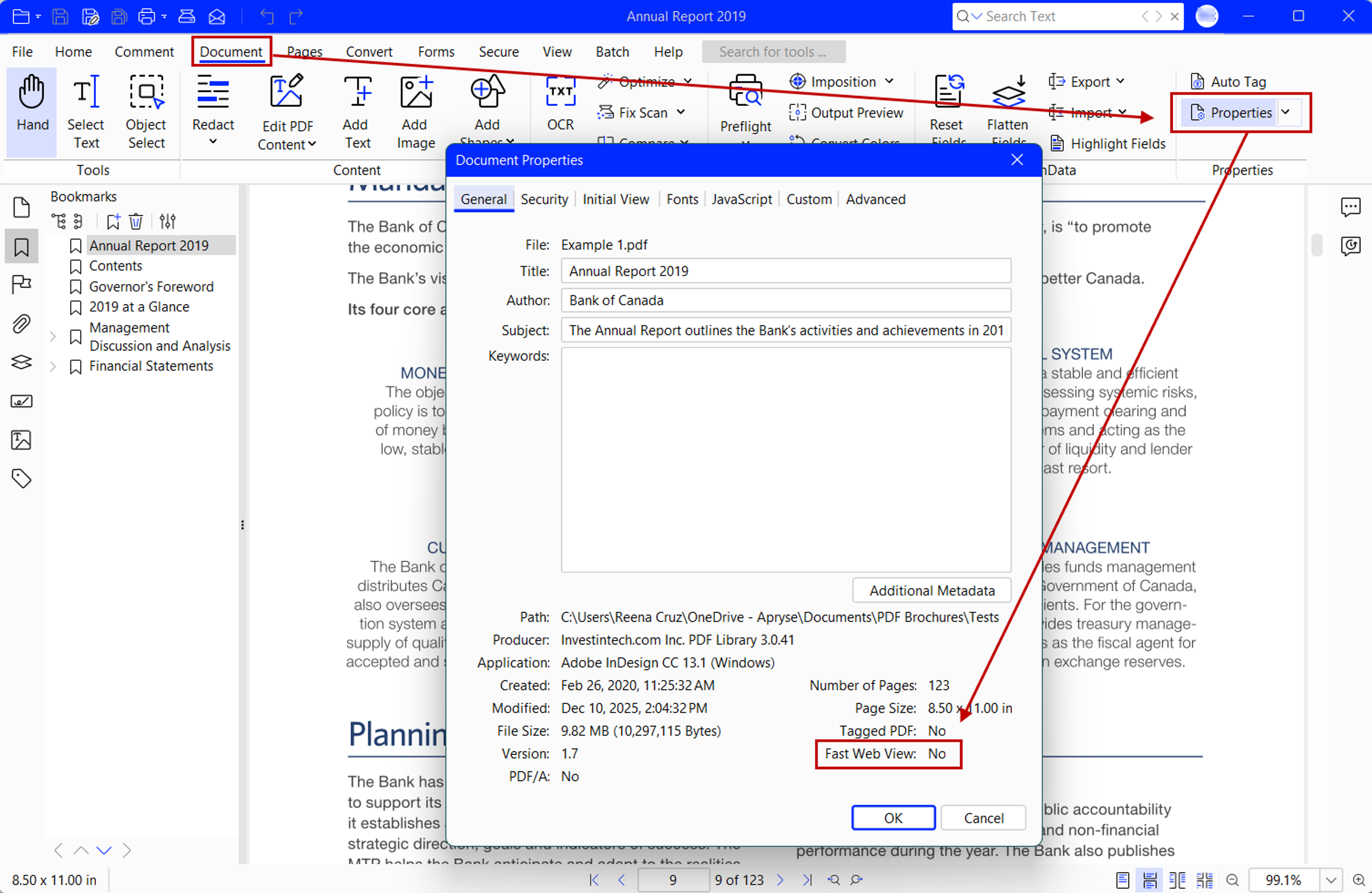
To verify if a PDF is fast web view enabled, check the PDF Properties dialog box:
- Open the PDF in Xodo PDF Studio.
- Go to Document > Properties.
- Look at the bottom of the dialog for Fast Web View status.

Tip: You can audit any PDF to see what contributes to its file size. Go to Document > Optimize > Audit to review images, fonts, and objects that increase load time.
What is fast web view and why does it matter
Fast web view restructures a PDF file so the first page loads right away in a browser. The rest of the file streams quietly in the background. This improves reading speed and reduces waiting time for users opening PDFs from websites, support pages, or email links.
- Fast web view is helpful when sharing PDFs through:
- Websites
- Email newsletters
- Customer support portals
- Online courses
- Public reports
Because the PDF creation process often generates large files, optimizing them and reducing the entire file size improves performance and supports better reading on mobile devices and slower networks.
Note that compression and linearization (fast web view) are different:
Feature | Compression | Linearization (Fast Web View) |
|---|---|---|
Reduces file size | ✔️ | ✖️ |
Speeds up online loading | ✖️ | ✔️ |
Changes image quality | Sometimes | ✖️ |
Best for email or storage | ✔️ | ✖️ |
Additional options to optimize PDF documents
Beyond fast web view, Xodo PDF Studio lets you compress images, clean up fonts, remove unused objects, and apply custom optimization settings. These tools reduce file weight and improve loading performance.
To optimize a PDF:
- Open your PDF in Xodo PDF Studio.
- Select Documents > Optimize.
- Choose a preset profile from the drop down menu.
- Specify your optimization settings.
- In the Advanced tab, enable Convert to fast web view.
- Click Optimize, then Save.
If you handle PDF files often, create a profile of your selected options. A profile lets you save settings you've chosen, so you can instantly apply them to future PDFs.
For large batches, use Batch Processing to apply optimization to several documents at once.
Key elements for optimizing a PDF
When optimizing an existing file, focus on components that provide meaningful reductions without lowering readability:
Image compression
- Convert images to JPEG
- Downsample or reduce resolution
- Remove hidden or unused graphics
Font cleanup
- Subset fonts
- Remove unused characters or duplicates
Object removal
- Delete unused form fields
- Remove unused bookmarks or metadata
- Remove embedded attachments
Choose settings based on how the PDF will be used. A marketing PDF often needs tighter compression than a long technical manual.
For documents that need to behave more like a web page than a static file, you can convert your PDF to HTML and keep your content accessible directly in the browser.
Why choose Xodo PDF Studio for PDF optimization
Xodo PDF Studio helps improve reading speed and file performance while keeping everything local and secure.
Key advantages include:
- Offline and secure: All processing happens locally on your desktop.
- Cross‑platform compatibility: You and your team can work across Windows, macOS, and Linux.
- Advanced controls: Get full control over images, object removal, clean up metadata, and more.
- Batch processing: Useful for marketers, educators, and teams processing large volumes of PDFs.
- One-time license: Xodo PDF Studio is available as a lifetime desktop purchase.
Additional resources
Below are some helpful guides for related to PDF optimization:
Frequently asked questions
1. What’s the difference between compressing a PDF and linearizing it?
PDF compression reduces file size by shrinking images, removing unused data, and tightening the document’s internal objects.
PDF linearization restructures the PDF so the first page loads immediately in a browser, improving the viewing experience when the file is opened online.
2. What does “optimize for fast web view” mean in a PDF?
Optimizing for fast web view means the PDF is reorganized so browsers can display the first page right away while the rest continues loading in the background
3. Is it better to compress or optimize a PDF?
It depends on your goal. Many users apply both.
Choose compression when you want a smaller file for email, storage, or upload limits.
Choose optimization (fast web view) when the PDF will be viewed online and you want it to load quickly.
4. What is the fastest way to compress PDF files?
Use the Optimize PDF feature in Xodo PDF Studio. Choose a compression preset or customize image and font settings for more control.
5. Can I optimize a scanned PDF?
Yes. Scanned PDFs often shrink significantly after image compression and object cleanup using Xodo PDF Studio's Fix Scan option.
6. Does optimization reduce document quality?
Only if high compression settings are used. Medium or custom settings for reducing the size of a PDF can preserve readability without losing quality.
7. Can I batch linearize multiple PDFs at once?
Yes. Add your files to the batch processor in Xodo PDF Studio, enable Convert to fast web view, and run the process to apply linearization to all selected PDFs.
8. Is fast web view required for websites?
No. It’s optional, but highly recommended. It gives readers quicker access while viewing in web browsers and improves the overall user experience.
9. How small can my PDF get after optimization?
The results vary. Image-heavy PDFs will shrink the most. Text-heavy PDFs will see smaller reductions.
Optimize your PDF document with Xodo PDF Studio
Optimizing a PDF for fast web view helps readers access content quickly.
Xodo PDF Studio compresses images, removes unnecessary objects, and prepares your document for faster loading across browsers and devices.
Want to optimize your PDFs with more control and privacy?
Visit the Xodo PDF Studio page to get started.


Related Articles
How to Make a PDF Read-Only and Prevent Editing
Looking to quickly make your PDF read-only and non-editable? Discover two quick ways to easily lock your PDF from editing using Xodo PDF Studio across Windows, macOS, and Linux.


How to Make a PDF Searchable (4 Easy Ways)
Dive into our digital document guide where we cover four ways to transform static PDFs into PDFs you can search, select, and copy text from. Learn how to convert PDF to searchable PDF by using OCR, converting to MS Word and text, or even by using your mobile device.


How to Open a Bank Statement PDF Online
Need to open and view your bank statement but don’t want to install software? Discover how to use your browser or a free PDF viewer like Xodo to review your statements online.




